Hide Screen - Screen Guard
- 3.2
- Rating
- 50.00K
- Installs
- Free
- Price
 Analysis by App-foxy
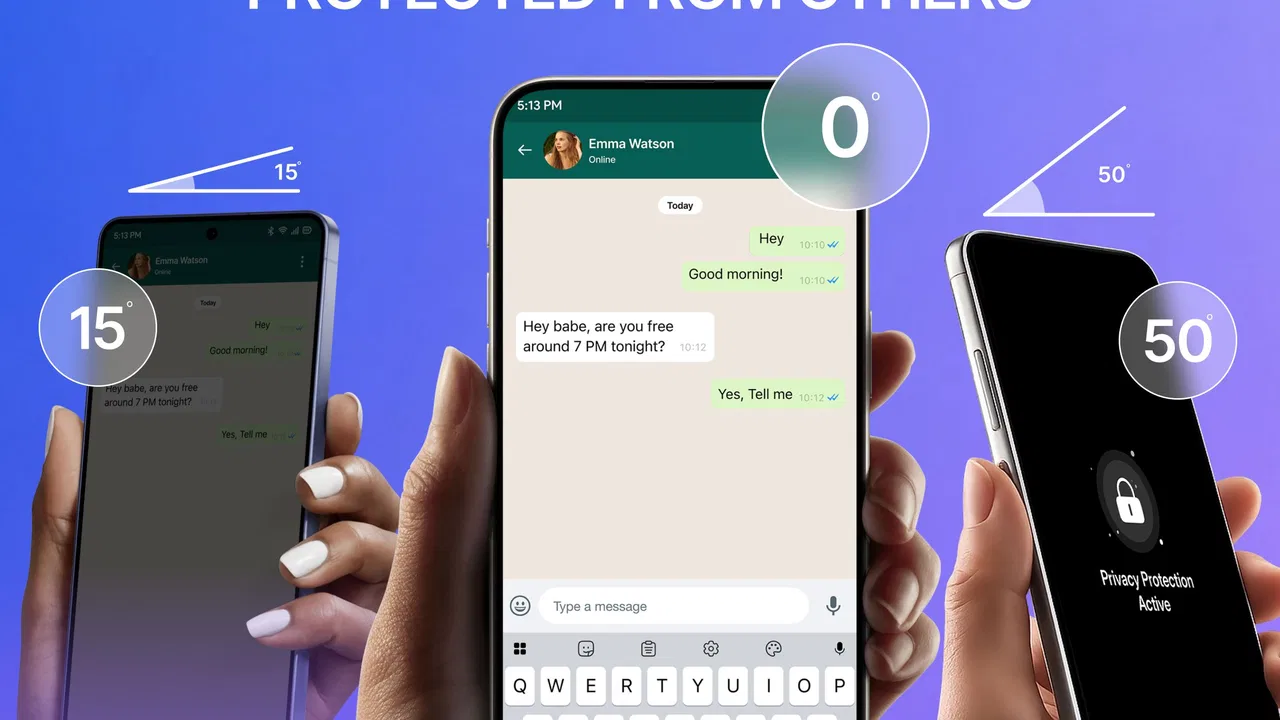
I tried Hide Screen - Screen Guard as a small privacy tool rather than as a full customization suite, and that distinction matters. Its purpose is straightforward: help keep the contents of a phone display away from nearby eyes. In a café, on public transport, at a shared desk, or while checking a personal message beside someone else, that narrow focus can be useful. I found the idea easy to understand, but the experience also depends heavily on how quickly you can activate it and whether the visual protection suits your situation.
This is a free personalization app from Nishal Technology, aimed at Everyone and compatible with Android 7.0 or later. It reached the store on August 13, 2025, and the current release is version 1.0.2. Its store presence is still fairly modest, with over 50 thousand installs, a 3.2 average from around 91 ratings, and four written reviews. Those figures suggest a tool that has attracted interest but has not yet become a universally trusted privacy standard.
How clearly the app communicates what it does
I focus on whether the app makes its single privacy purpose easy to understand before a user relies on it in public. That includes the clarity of its controls and the importance of knowing when the screen guard is active. From there, the next section looks at how that simple idea fits into an everyday phone routine.
You May Also Like

 Blood Strike: 2.5 Anniversary
Blood Strike’s Loadouts Turn Every Drop Into a Tactical Gamble
A close look at Blood Strike’s custom loadouts: how fast access to signature weapons reshapes its battle royale rhythm, rewards preparation, and narrows the gap between fights.

 Pandora - Music & Podcasts
Pandora’s Music Is Easy to Start, but Harder to Recover
Pandora’s strength is its low-effort path from a seed to a station. Its weak spot is how much confidence it asks you to place in connection, setup, and quiet recovery.

 8 Ball Pool
 Is Built on Rivalries, Rematches, and Routine
A close look at the rivalries, rematches, shared routines, and unanswered safety questions that turn a quick pool match into a persistent mobile community.

 Samsung Music
’s Quiet Strength Is Playing What You Already Own
Its reach comes less from spectacle than from dependable access to a personal library. That simplicity is both the app’s strongest retention engine and its ceiling.

 AccuWeather: Weather Radar
AccuWeather Review: A Quick, Clear Forecast for Everyday Decisions
For everyday plans, the best forecast is the one you can understand quickly. AccuWeather makes rain timing, radar, and local conditions easy to act on, with a few trade-offs.

 Hill Climb Racing
Why Hill Climb Racing Still Turns Crashes Into One More Run
A tiny car, a bumpy hill and one more upgrade: Hill Climb Racing keeps resurfacing because its simple chaos makes every near-miss feel personal.
More From Our News Desk
View All News


Readability and navigation for a quick privacy task
The strongest part of this concept is that the goal is immediately recognizable. You are not opening an app to organize files, edit a theme, or manage a complicated profile. You want to make your screen less exposed, and the name and short description point directly toward that use. For someone who prefers a focused utility over a crowded control panel, that simplicity is a welcome starting point.
At the same time, a privacy overlay or screen-guard tool needs unusually clear instructions. A user should know when protection is active, what part of the display it affects, and how to return to normal viewing without guessing. This is especially important for people with low vision, reading difficulties, or limited familiarity with Android settings. A design that looks minimal can still become confusing if its controls are represented only by small symbols or if the active state is communicated through a subtle color change.
When I judge an app like this, I pay less attention to decorative styling and more attention to the first few seconds of use. Can I identify the main action? Can I tell whether it worked? Can I cancel it without searching through several screens? Screen Guard makes sense as a single-purpose idea, but its usefulness rises or falls on those interaction details. Privacy protection is most valuable when it can be enabled before a nearby person has time to read the display.
There is also a practical readability trade-off. A visual layer that hides content from side angles may make the phone harder to read straight on. That can be acceptable for a short message or a quick account check, but frustrating during longer reading. Users who enlarge text, increase contrast, or rely on screen magnification should test the protected view carefully rather than assuming that privacy and readability will remain equally strong.
What the design means for different ways of using a phone
For people who are comfortable with ordinary touch controls, the app’s narrow purpose should make it less demanding than a larger privacy suite. There are fewer concepts to learn, and the task is easy to explain to another person: activate the guard when the screen should be less visible. That can help users who dislike complicated menus or who need a quick routine they can repeat without much thought.
However, a simple interface is not automatically an inclusive one. Someone with tremors, reduced dexterity, or difficulty making precise taps may struggle if the key control is small or placed close to another action. A person using a phone one-handed may also need the main control to be reachable without stretching across a large display. I would be more confident recommending the app after checking how forgiving its tap targets are and whether its controls remain usable with larger system text.
Users with color-vision differences should not have to depend on color alone to recognize the active state. A label, icon change, or clear visual boundary is more dependable. Likewise, people with light sensitivity may find a darkened or altered screen comfortable in one setting but unpleasant in another. The right choice depends on the visual treatment actually produced on the device, so I would test it at low brightness, high brightness, and in both indoor and outdoor light.
For blind or low-vision users who depend on spoken feedback, the important question is whether the app’s essential actions remain understandable through the phone’s accessibility tools. I would not treat the utility as automatically suitable just because it has a simple purpose. A screen privacy layer can interfere with reading, magnification, or visual orientation if it is not presented clearly. Anyone relying on TalkBack or similar assistance should confirm that activation and dismissal remain discoverable before using it for sensitive tasks.
Everyday situations where the privacy layer makes sense
The most convincing scenario is a crowded commute. Imagine checking a private conversation while standing beside someone who can easily see your display. Instead of turning the phone awkwardly or waiting until you reach a quieter place, you can use the guard for that brief interaction. The benefit is not perfect secrecy; it is reducing casual visibility during ordinary moments.
A shared workplace is another realistic setting. You may need to review a personal notification at a desk where colleagues pass behind you. The app can be useful when the concern is visual exposure rather than someone actively handling the device. The same applies in a waiting room, a classroom before an appointment, or a family room where you do not want every message visible to people nearby.
There is a useful workflow here: activate the protection before opening the sensitive screen, complete the short task, then disable it before reading anything that requires careful visual detail. That habit is better than leaving the guard on constantly and wondering why text, buttons, or images feel less comfortable. It also reduces the chance of forgetting that the display has been altered.
For users with cognitive or attention-related needs, a short repeatable routine may be easier than managing several privacy settings. “Enable, check the message, disable” is a clear sequence. The weakness is that any extra confirmation or unclear status indicator can break that routine. If you often need privacy without interrupting your concentration, practice the sequence in a safe setting first.
Where it differs from familiar alternatives
The usual alternative is a physical privacy screen protector. That approach works continuously and does not require remembering to launch an app, which is valuable for people who want side-angle reduction all day. A physical filter can also feel more predictable because it is always part of the display surface. The trade-off is that it may reduce brightness or clarity even when privacy is unnecessary, and changing it means replacing hardware rather than switching a setting.
Another alternative is simply lowering the phone angle, reducing brightness, or moving to a more private position. Those methods cost nothing and do not add a visual layer, but they are awkward in crowded spaces and do not always stop someone standing beside you from seeing the screen. Screen Guard is more convenient when you need a temporary response rather than permanent protection.
Some phones also include built-in privacy settings, notification controls, or manufacturer-specific display tools. Those options can be better when your real concern is message previews, lock-screen content, or app access rather than side viewing. A dedicated utility is not automatically the best answer to every privacy problem. I would choose the built-in option when it offers a clearer system-level control, and use this app when the immediate concern is the visibility of the display during use.
The key trade-off is convenience versus certainty. A digital guard can be switched on for one situation, but you must remember to activate it and verify that it is working. A physical filter is less flexible, yet its protection does not depend on a last-second action. If you routinely handle confidential information in public, I would consider a hardware solution or a phone with strong native privacy controls alongside this app rather than relying on one lightweight utility alone.
Motor, sensory, and situational barriers to keep in mind
People with limited hand movement may need a reliable way to start the protection without repeated precise taps. If the app requires a small on-screen control, that could be a meaningful barrier. A user who cannot comfortably reach the top or bottom of a large phone may also find the workflow less practical while walking or holding a bag. This is why I would set it up and rehearse it before relying on it in a busy public place.
For users with dyslexia or other reading difficulties, the app should not make the display look visually busy. A privacy effect that adds patterns, dark areas, or reduced contrast may increase the effort needed to distinguish text. Conversely, some people may appreciate a less exposed screen because it reduces the distraction of nearby viewers. The result is personal, and the safest approach is to test the exact combination of font size, contrast, brightness, and display mode used every day.
People with hearing loss are unlikely to benefit from any sound-based status cue alone. A visible confirmation is important, especially in a noisy street or a quiet meeting where audio feedback may be unavailable or inappropriate. Users with photosensitivity should also be cautious about any transition effect, brightness change, or visual pattern. I would activate it in a calm environment first and stop using it if the screen causes discomfort.
Situational access matters just as much as permanent disability. Someone wearing gloves, using a cracked screen, dealing with glare, or operating a phone with one hand may experience the app differently from someone seated indoors with both hands free. A privacy tool should be judged in the moment it is needed, not only from a comfortable setup at home.
Remaining barriers and sensible privacy habits
The main limitation is that hiding a screen from casual side glances is not the same as securing the information on the phone. It does not replace a strong lock method, careful notification choices, or awareness of who is nearby. Someone standing directly behind you, holding the phone, recording it, or viewing it from a favorable angle may still see more than you expect. I would treat the app as one layer of visual discretion, not as a complete security system.
There is also the risk of forgetting that the guard is active. If you open a map, read a long document, scan a code, or adjust an account setting while the display is altered, the experience may feel broken even though the app is behaving as intended. My practical advice is to use it for short, sensitive interactions and turn it off before ordinary browsing. A clear personal habit prevents more frustration than leaving the effect enabled all day.
Users should also think about emergency access. If you need to read a medical instruction, identify a transit stop, or show a screen to another person quickly, a privacy layer may slow you down. Keep the dismissal action familiar, and do not activate the guard for tasks where immediate legibility matters more than discretion. This is particularly important for people with visual impairments or anyone who may need assistance from another person in public.
The app’s rating of 3.2 indicates a mixed reception rather than a universally smooth experience. I would not interpret that number by itself as a reason to avoid it, but I would approach it as a prompt to test compatibility with your phone and accessibility settings. The developer, Nishal Technology, presents a focused tool, yet a focused tool still needs to fit the user’s display habits, motor control, and preferred way of receiving feedback.
Who should use it, and who should choose something else
I think this app is most suitable for someone who occasionally checks private content in public and wants a free, temporary screen-privacy option. It may also appeal to users who do not want a permanent physical filter because they prefer normal clarity at home. The Everyone age rating makes it approachable for a broad audience, although younger users should still understand that visual concealment does not make unsafe sharing or weak account security harmless.
I would be more cautious about recommending it to professionals who regularly display highly confidential material, people who need guaranteed protection from every viewing angle, or users who cannot tolerate reduced readability. A physical privacy protector, a device-level privacy feature, or simply avoiding sensitive work in public may be the better choice in those cases. The same applies to anyone who needs a fully accessible interface with proven support for a particular assistive setup.
My most useful tip is to evaluate it with the exact content you care about. Do not test only on a blank screen. Try a message with small text, a form with several controls, a photo, and a screen you might need to show someone else. Check the result from straight on and from the side, then practice turning protection off without looking for the control. That small test reveals whether the app fits your real routine much better than the store summary does.
An inclusive verdict for a narrowly defined tool
Hide Screen - Screen Guard has a clear reason to exist: it offers a temporary way to make ordinary phone use less exposed around other people. I like that it targets a common discomfort without pretending to be a complete security platform. Its value is highest during short, everyday moments when moving away or covering the display is inconvenient.
My recommendation is conditional rather than enthusiastic for everyone. If you can read the protected screen comfortably, activate it with ease, and recognize its active state, it is worth trying as a free privacy aid. If you depend on magnification, spoken navigation, strong contrast, or highly predictable one-handed controls, test it carefully before making it part of your routine. Accessibility here is about practical fit, not a label alone.
Overall, I would keep it in the category of useful situational protection. It can reduce casual shoulder-surfing, but it cannot guarantee confidentiality, replace device security, or solve every privacy concern. For my own use, the best approach would be to enable it only before a sensitive public task, confirm that the information remains readable, and disable it as soon as the task is finished. That balanced workflow gives the app a fair chance to help without allowing its visual layer to become another obstacle.
FAQs for Hide Screen - Screen Guard
01What is Hide Screen - Screen Guard and how does it work?
Hide Screen - Screen Guard is an app designed to protect your screen from prying eyes. It works by overlaying a filter on your device's display, making it difficult for others to see what you're doing. This is especially useful in public places or crowded environments where privacy is a concern.
02Is Hide Screen - Screen Guard compatible with all devices?
Hide Screen - Screen Guard is compatible with most Android and iOS devices. However, performance may vary based on your device's specifications and operating system version. It's recommended to check the app's requirements on the download page to ensure full compatibility with your device.
03Does using Hide Screen - Screen Guard affect battery life?
While Hide Screen - Screen Guard is designed to run efficiently, any app that operates in the background can have a minor impact on battery life. The app uses a screen overlay, which may slightly increase power consumption. Users should monitor their battery usage to determine if the app significantly affects their device's performance.
04Can I customize the screen filter in Hide Screen - Screen Guard?
Yes, Hide Screen - Screen Guard allows users to customize the screen filter according to their preferences. You can adjust the opacity, color, and pattern of the overlay, ensuring that the screen remains visible to you while obscuring it from others. This customization enhances user experience and privacy.
05Is there a free version of Hide Screen - Screen Guard?
Hide Screen - Screen Guard typically offers a free version with basic features. However, for advanced options and customization, a premium version may be available through in-app purchases. Check the app store for detailed information on pricing and available features to decide which version best suits your needs.
Pros
- Easy to use and intuitive interface.
- Lightweight app with minimal storage use.
- Offers multiple screen mask designs.
- Privacy protection from prying eyes.
- Customizable transparency levels.
Cons
- Limited free version features.
- Occasional ads can be intrusive.
- May drain battery on older devices.
- Some masks lack visual appeal.
- Limited support for landscape mode.

Hide Screen - Screen Guard
Gallery